My primary development environment has always been Windows, but a few years back I switched to a Chromebook for my mobile usage. Development is just so. much. better. on a desktop that it’s not worth trying to set up a full dev environment on a laptop when 90% of my dev time is on a desktop. In the rare cases that I need to dev remotely, I can remote desktop from my laptop.
Once that decision is made, switching to a Chromebook is a no brainer – with 90% of my mobile activity being browser based and the rest in remote desktop or other apps that have Android versions. Chromebooks are light, simple, great battery life, no need to set up/admin/manage. Doesn’t need to be powerful, it’s more like the dumb terminals of yore. I’ve got the Acer Chromebook Spin 713 with the 13" 3:2 2K display – fits a lot of pixels but just sizable enough you can run at 1x instead of 1.5x or 2x density.
I didn’t attempt to set a up a dev environment on the Chromebook initially, but once I started with Hugo I wondered if it was possible to get that working locally. It’s cool to have set up with GitHub Actions to do a deploy but local would be even snappier.
I first tried getting hugo via package manager like apt but only found an old version there.
Turns out it’s actually quite easy to get Hugo running on ChromeOS by downloading and installing directly. Here’s how:
Go to the Hugo releases page and find the latest Linux extended amd64 (or arm depending on your processor architecture)
.debfile. Make sure its the extended version.Then you can either install via command line or via the ChromeOS Linux Package installer:
Command Line:
- Copy the URL for the
.debfile for the next step. - Go to Linux terminal and wget the release, for example:
wget https://github.com/gohugoio/hugo/releases/download/v0.110.0/hugo_extended_0.110.0_linux-amd64.deb - Install the package:
sudo dpkg -i hugo_extended_0.110.0_linux-amd64.deb
Linux Package installer:
- Download the
.debfile - Right click it and choose
Install with Linux: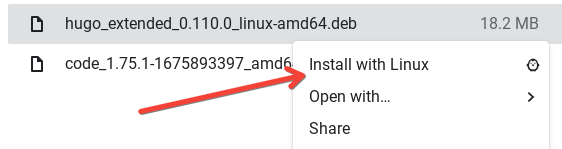
- Copy the URL for the
After installation, go to a folder with your Hugo site and run
hugo -D serverto make sure everything is set up. By default your site will be accessible at http://localhost:1313/Nuke the package file to clean things up
You’ve now got Hugo running locally on ChromeOS!
For a more rich text editor, install VS Code on Chromebook.